Hungry Wheels Controls & HUD
Drive, serve, fight, and read the interface before the E5 tornado forces every decision.
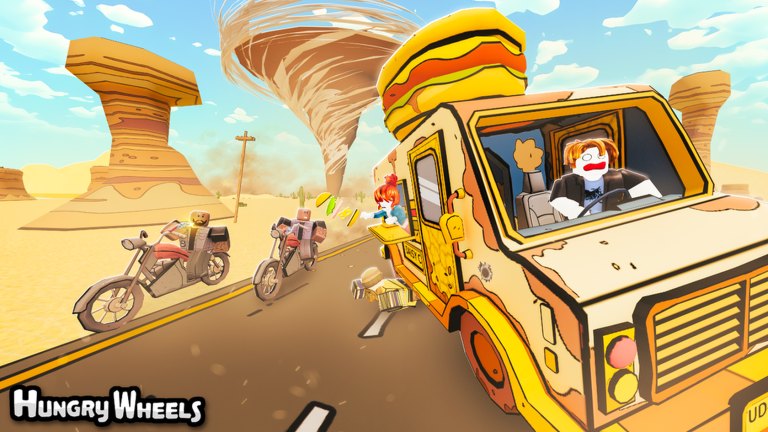
Hungry Wheels [BETA] by Daisy Prod. asks you to pilot a burger truck through a shrinking safe world: serve customers, gather supplies, fight looters, upgrade later, and outrun an E5 tornado. Clean inputs matter as much as shop choices. This guide covers PC and mobile control expectations, HUD priorities, and habits that keep you from flipping the truck while the funnel eats the horizon.
Pair this page with Getting Started for day-one flow and Survive the Tornado for flee timing. Economy details live on Stamps shop; upgrade feel changes after truck upgrades.
Mindset: the truck is your character
You are not a freerunning avatar first—you are an operator. Most deaths come from late braking, panic steering into debris, or abandoning driving focus mid-loot fight. Treat every input as fuel and time spent. Smooth > flashy.
PC controls (typical Roblox driving layout)
Exact keybinds can follow your Roblox settings, but expect this pattern:
- Throttle / brake / steer — standard vehicle keys (often WASD or arrow equivalents depending on your setup)
- Camera — mouse look to read storm direction, customer spots, and looter approaches
- Interact / serve — proximity interaction when aligned with customers or service points
- Weapons / combat — switch and fire using your Roblox combat binds once a shop weapon is equipped
- UI — click the Codes button on the left for redemptions; use on-screen shop and menu buttons for Stamps purchases before matches
PC driving tips
- Feather steering on the burger truck; overcorrection swings the rear wide.
- Brake earlier than you think when approaching service stops—momentum carries.
- Keep the camera high enough to see storm cues and player traffic in 16-player servers.
- Re-center after combat before flooring throttle; shooting while sideways is how you hit props.
PC UI tips
- Redeem codes in a calm lobby moment, not mid-chase.
- Confirm Stamp balance after redeem before opening the shop.
- Learn where weapon and consumable prompts appear so you are not hunting menus under pressure.
Mobile controls
Touch driving adds latency between intent and tire response.
- Use the on-screen driving stick / buttons with a relaxed thumb arc; death-grip microflicks cause swerve.
- Tap interact prompts deliberately when serving—missed taps waste storm time.
- For combat, prioritize short engagements; tracking looters while steering is harder on a small screen.
- Pinch or drag camera to check tornado bearing whenever you change routes.
- The Codes control still sits on the left; give yourself a stable portrait or landscape grip before typing case-sensitive strings.
Mobile survival habits
- Plan stops with extra spacing; braking distances feel longer when touch steering fights you.
- If a fight looks messy, drive away—bandages and a retry beat a flipped truck.
- Lower graphics slightly if frame drops make storm reads unreliable on older phones.
Serving customers without losing the wheel
Service is core fantasy and badge progress (Food Truck Operator energy), but it is also a standing commitment.
- Approach aligned and slow—do not handbrake drama into the customer.
- Complete the serve interaction cleanly.
- Immediately reacquire camera on the storm and your exit vector.
- If looters tag the stop, decide fight or flight in under a second.
Greedy multi-stop chains are fine only while the map still feels wide. The moment tornado pressure spikes, service becomes optional content—see the flee rules on Survive the Tornado.
Combat controls under pressure
Looters exist to break your rhythm. Weapons from the Stamps shop—shotgun, rifle, revolver—change how you hold space:
- Shotgun — forgiving in close truck-side scrapes; great when you barely left the seat of the moment.
- Rifle — rewards steady aim at range; stronger if you can stop the truck safely first.
- Revolver — flexible sidearm energy; check the tier list for current ranking context.
Combat HUD discipline:
- Do not empty magazines into dead space while the storm closes.
- Pop bandages after the exchange, not during a blind reload panic if the UI allows a calm window.
- Energy drinks are tempo tools—use them when you need a controlled burst to rotate, not as a substitute for fuel.
If scripts or weird movement appear in your lobby, do not mirror them; report and refocus. Script risks are summarized on the Scripts Hub.
HUD priorities ranked
Read the interface in this order during a live run:
- Fuel / gasoline state — silent run-ender
- Storm / tornado pressure cues — dictate serve vs flee
- Truck handling feedback — are you sliding, blocked, or clear?
- Threat players / looters — local combat only
- Customer opportunities — only if 1–4 are stable
- Consumable counts — bandages and drinks before you need them
Pre-match HUD habits differ: Codes → Stamp balance → shop loadout → ready check. Mid-match HUD habits never start with “maybe one more optional stop.”
Codes button and shop access
Many beginners cannot find redemptions because they hunt the Roblox website. Codes are in-experience on the left. Type exactly, redeem once per account, then buy through the shop UI. Full strings and reward table: Codes Hub. Loadout theory: Stamps shop.
Shared-world driving etiquette (controls angle)
In a 16-player server your inputs affect others:
- Do not pin trucks in doorways or narrow paths “for fun.”
- Avoid ramming as a greeting—collisions cost everyone storm time.
- If you AFK in a high-traffic serve spot, move; idle bodies create pileups.
Broader community norms: Players Hub.
Practice drills (10 minutes)
Drill 1 — Straight-line braking: Approach a landmark, brake to a full stop without skidding, repeat until consistent.
Drill 2 — Camera storm check: Every 15–20 seconds, deliberately sweep camera toward the threat axis while rolling.
Drill 3 — Serve and go: Complete one serve, immediately accelerate along a planned exit, no bonus wandering.
Drill 4 — Fight disengage: Engage a looter briefly, then force yourself to remount route focus rather than chasing kills.
Run these on a fresh session after redeeming codes so kit anxiety is gone.
When controls feel “broken”
BETA means genuine bugs exist—input hitch, UI delay, vehicle weirdness after patches (see Updates). Before blaming the build:
- Rejoin once
- Check whether you are out of fuel or overloaded in panic steering
- Confirm you are not fighting camera collide on debris
- Try the opposite platform if you have both PC and mobile available
If the truck handling changes after an upgrade, that may be progression—not a bug. Read Truck upgrades so new speed or stability does not surprise your muscle memory.
Cross-links for the next skill
- Getting Started — first-hour plan
- Survive the Tornado — when to drop service
- Stamps Shop — what your buttons are spending
- Truck Upgrades — how upgrades change feel
- Guides Hub — full tutorial index
- Tier List — weapon pick confidence
Master the HUD order, keep steering smooth, and let the tornado—not a missed keybind—be the only clock you fear.
Frequently Asked Questions
Quick answers to the most common Hungry Wheels questions.
Where is the Codes button in Hungry Wheels?
On the left side of the in-game HUD. Open it, type a case-sensitive code, and press Redeem. It is not on the Roblox website.
Are Hungry Wheels controls different on mobile?
Systems are the same, but touch steering needs earlier braking, simpler fight choices, and deliberate camera checks for the tornado.
What should I watch on the HUD during a run?
Fuel first, then storm pressure, then truck handling, then looters, then customers. Consumable counts matter before you are already in trouble.
How do I fight looters without crashing?
Stop or slow safely, take a short fight with your shop weapon, bandage after, and reacquire your escape line instead of chasing kills.
Why does the truck feel harder to steer after I upgrade?
Upgrades can change handling and speed. Recalibrate braking distances using the Truck Upgrades guide and short practice drills.
What guide helps after I learn controls?
Open Survive the Tornado for flee timing, or Stamps Shop if your kit still feels weak.